What Is Google Search Console? A Plain-English Guide for Business Owners
Most business owners know roughly how many people visit their website. Far fewer know which Google searches brought those people in, or which pages Google has quietly left out of its results. That second set of answers lives in a free tool called Google Search Console.
We set up Search Console for nearly every site we build or take over. It’s not flashy, and it won’t fix anything by itself. Still, it’s the closest thing you’ll get to Google telling you directly how it sees your website. Here’s what it is, what it shows, and the few reports worth checking.
What is Google Search Console?
Google Search Console is a free service from Google that reports how your website performs in Google Search. It shows the searches where your site appeared, how often people clicked, and whether Google ran into problems reading your pages.
In other words, it looks at your site from Google’s side. That makes it different from tools that only count visitors once they arrive.
Search Console vs. Google Analytics
People mix these two up all the time, and that’s understandable. They’re both free, they’re both from Google, and they both have charts. However, they answer different questions.
- Google Analytics tells you what visitors do after they land on your site. For example, which pages they view and how long they stay.
- Google Search Console tells you what happens before the click. That includes the searches you showed up for, how high you appeared, and whether your pages can be found at all.
Ideally you have both. If you only have time for one, Search Console is usually the better starting point for a small business that wants more customers from Google.
The Performance report in Google Search Console
The Performance report is where most owners spend their time. It uses four simple numbers:
- Impressions: how many times your site appeared in search results.
- Clicks: how many times someone clicked through to your site.
- CTR (click-through rate): clicks divided by impressions.
- Average position: roughly where your site sat in the results.
The most useful part is the list of search queries. Here you see the actual words people typed before they found you. Sometimes those words match what you expected. Other times you discover you’re showing up for a service you barely mention, or not at all for the one you care about most.
Google’s Performance report overview covers the filters in more detail. It also explains why a query in your list may not show your site when you search it yourself. Results vary by place, device, and search history.
Reading the numbers without overreacting
A few patterns come up again and again, and each points to a different fix.
Lots of impressions, very few clicks
Google is showing your page, but searchers aren’t choosing it. Often the page title and description that appear in results are vague or don’t match what people searched for. Rewriting them is one of the cheaper improvements in SEO.
Plenty of clicks, but the phone stays quiet
Search is doing its job, so the problem is on the page. Visitors may not find your number, your service area, or a clear next step. We cover the usual causes in why a website gets traffic but not calls.
An average position stuck on page two
Your page is close, but something is holding it back. Sometimes one page tries to cover too many services at once. In that case, giving each main service or community its own page can help. Our post on city landing pages for local search explains that approach.
Keep in mind that a single bad week means very little. Search Console keeps up to 16 months of data, so compare longer stretches before drawing conclusions.
Is Google indexing your pages?
A page has to be in Google’s index before it can show up in search at all. The Page indexing report lists which pages Google has indexed and which it hasn’t, along with a reason for each.
Not every excluded page is a problem. Tag archives, duplicate versions of a page, and old redirected addresses are often left out on purpose. What you’re looking for is an important page, such as a main service page, sitting in the “not indexed” list.
For a single page, use the URL Inspection tool. Paste in the address, and Search Console tells you whether that page is on Google. If you just published or fixed a page, you can also request indexing from the same screen. That’s a request, not a guarantee, but it can speed things up.
Sitemaps, security, and other alerts
A sitemap is a file that lists the pages on your site. Most WordPress SEO plugins create one automatically. Submitting it in Search Console helps Google find new pages and lets you see whether Google could read the file.
Search Console also has reports for manual actions and security issues. Most sites will never see anything there, and that’s the goal. If a warning does appear, treat it seriously. A hacked site can be flagged in search results, which is one more reason to keep up with protecting your website from hackers.
Finally, Google can email the site owner when it detects a new problem. Make sure those emails go to an inbox someone actually reads.
How to set up Google Search Console
Setup starts at Google’s official Search Console sign-up page, where you add your website as a “property” and prove you own it. There are two main types:
- Domain property: covers every version of your site (with or without www, http or https). It’s verified by adding a DNS record with whoever manages your domain.
- URL-prefix property: covers one exact address, such as https://www.yourbusiness.com/. It offers more verification options, including an HTML file or a tag on your site.
For most businesses, a Domain property is the cleaner choice because it captures everything in one place. After verification, data usually starts appearing within a few days.
One more tip: if a web designer set this up for you, ask to be added as an owner too. If you ever part ways, you shouldn’t lose years of search history.
Google Search Console after a redesign or move
This is when the tool earns its keep. After a new site launches, check the Page indexing report and Performance report over the following weeks. If old addresses suddenly return errors, a redirect is probably missing. Our website redesign guide explains why keeping redirects in place matters so much.
Next, submit the new sitemap. Then watch for important pages dropping out of the index. Catching that in week two is far easier than discovering it six months later.
A 10-minute monthly Google Search Console check
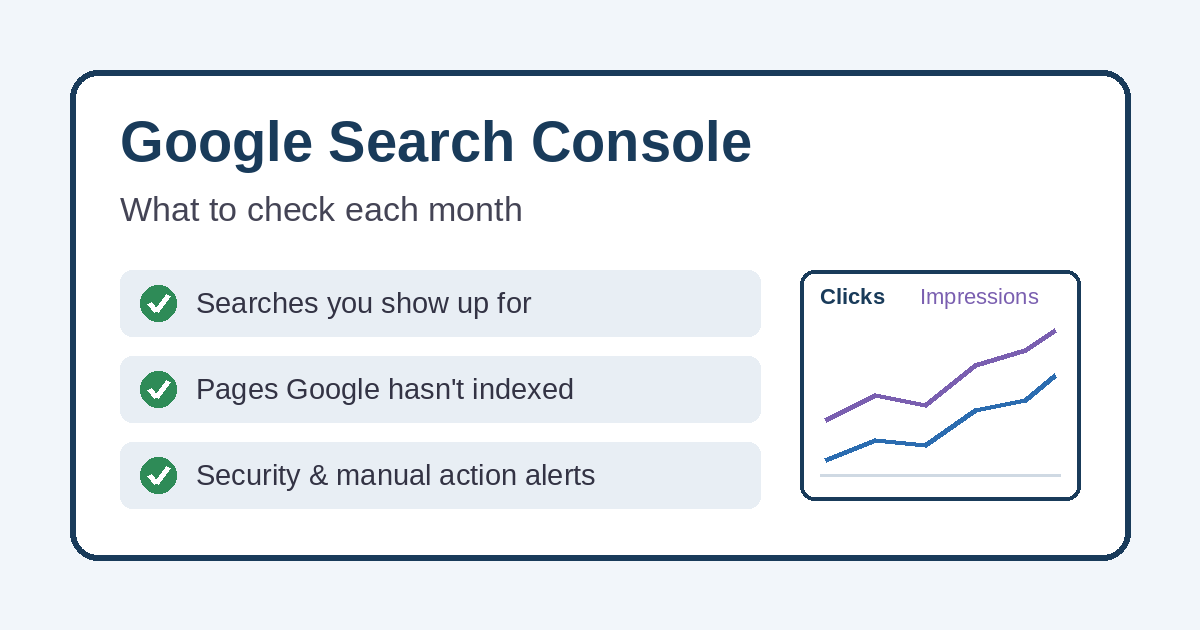
You don’t need to live in Search Console. Once a month is plenty for most small businesses:
- Open the Performance report and compare the last three months with the three months before.
- Scan the top queries. Are they the services you want to be known for?
- Look for pages with high impressions and low clicks, and note them for a title rewrite.
- Check the Page indexing report for any key page that isn’t indexed.
- Confirm there are no manual action or security warnings.
Want help making sense of it?
Simplified Internet Design sets up and reviews Google Search Console for small businesses, nonprofits, and local governments across St. Clair County and Southeast Michigan. We also turn what it shows into practical fixes, from page titles to new service pages. You can learn more about our website design services.
If you’re not sure Search Console is even set up for your site, get in touch, and we’ll check it with you.