Why Does My Website Say “Not Secure”? What It Means and How to Fix It
A customer types in your web address, and before your homepage appears, the browser flashes a Not Secure warning. Some people click past it. Plenty of others hit the back button and call the next business on the list.
The good news is that a Not Secure warning is one of the most fixable problems a website can have. Below is what the warning means, why it got harder to ignore this month, and how to get rid of it for good.
What the Not Secure warning actually means
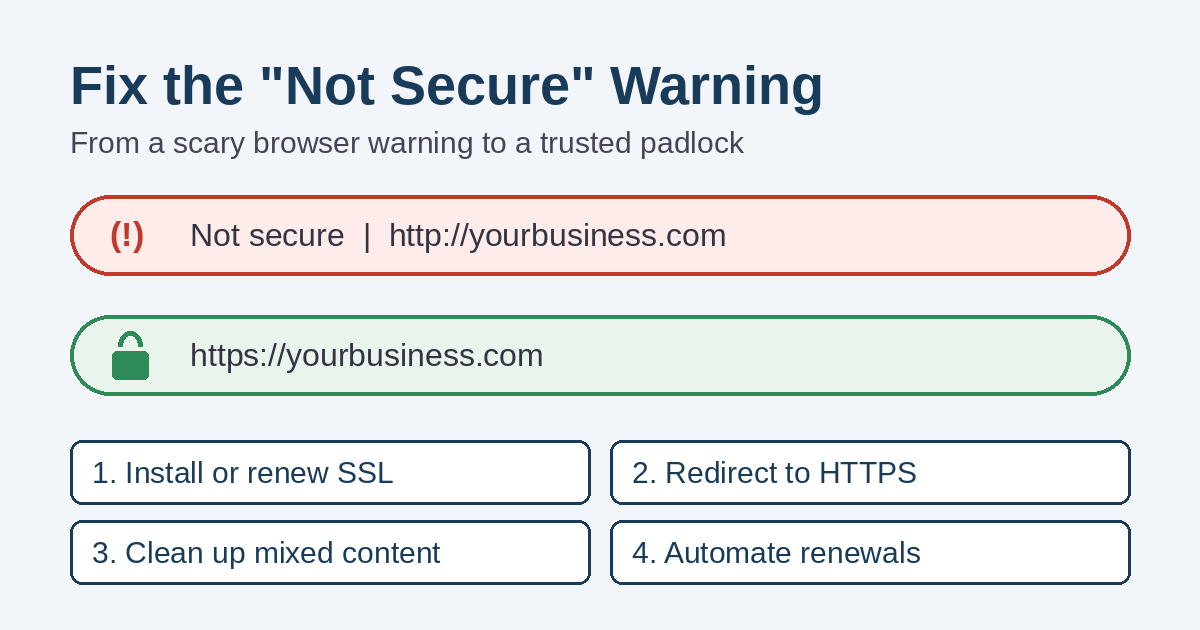
Every website loads over one of two connections. The older one is HTTP. The newer one is HTTPS, where the “S” stands for secure.
With HTTPS, the information moving between your visitor’s device and your website is encrypted. That includes contact form messages, quote requests, and login details. With plain HTTP, that same information travels in a readable form that someone on the same network could see or change.
HTTPS depends on a small file installed on your hosting account called an SSL certificate. (You’ll also hear it called a TLS certificate. For a business owner, the two names mean the same thing.) When the certificate is in place and working, browsers treat the page as secure. When it’s missing, expired, or only partly working, they show the warning instead.
One important point: the warning doesn’t mean your site has been hacked. It means the connection isn’t protected. Still, your visitors can’t tell the difference, and most won’t stop to find out.
Why the warning got harder to ignore in October 2026
Google Chrome started labeling every HTTP page “Not secure” back in July 2018, with Chrome 68. Google announced that change on its security blog. For years after that, the label sat quietly in the address bar.
Now it’s more than a label. With Chrome 154, which began rolling out in October 2026, Chrome turns on a setting called “Always Use Secure Connections” by default. In Google’s words, Chrome will now ask for the user’s permission before the first visit to any public site without HTTPS.
In other words, a site without working HTTPS no longer just shows a small notice. Instead, many Chrome users will see a warning screen and have to choose to continue before your page loads at all.
What a Not Secure warning costs your business
The biggest cost is trust. People are taught to avoid sites their browser flags, so a warning on your homepage makes a careful buyer hesitate. It’s especially awkward when you’re asking them to fill out a contact form or a quote request.
It can also hurt the rest of your marketing. You might pay for Google Ads, post on social media, or keep your Google Business Profile up to date. All of that effort still sends people to the same page with the same warning.
What about search rankings? Google’s page experience guidance asks site owners whether their pages are “served in a secure fashion.” At the same time, Google says that page experience factors other than Core Web Vitals don’t directly lift rankings. So HTTPS isn’t a magic ranking boost. The real reason to fix it is the people who leave before they ever read your page.
Common causes of a Not Secure warning
Most warnings come from one of a handful of problems. Some sites have more than one.
There’s no SSL certificate
Older sites, and sites on bargain hosting, sometimes never got a certificate at all. In that case, every page loads over HTTP.
The certificate expired
Certificates don’t last forever. When one expires, Chrome usually shows a full-page “Your connection is not private” error, which is even scarier than the Not Secure label. This happens most often when renewal was set up by hand and nobody got the reminder.
The site doesn’t redirect to HTTPS
Sometimes the certificate works, but the HTTP version of the site still loads. So anyone who types your address without “https” or clicks an old link lands on the unsecured version.
The certificate doesn’t cover every version of your address
Your site might work at yourbusiness.com but show an error at www.yourbusiness.com, or the other way around. The certificate has to cover the versions people actually use.
Mixed content
This one confuses many owners, because the address starts with HTTPS and the warning shows up anyway. It happens when the page itself loads securely, but some images, scripts, or other files still load over HTTP. Google’s web.dev team explains how mixed content works and why browsers block or flag it.
On WordPress sites, mixed content often comes from old image links saved in pages, a theme setting, a page builder, or an embedded widget from another service.
How to fix the Not Secure warning, step by step
If you’re comfortable in your hosting account and WordPress dashboard, you can handle many of these steps yourself. Take a full backup first, though, because a few of them change web addresses across the whole site.
- See what visitors see. Open your site in Chrome using both the www and non-www versions, and try typing “http://” in front, too. Then click the icon just left of the web address to see what Chrome says about the connection.
- Install or renew the certificate. Many hosting companies include free certificates, often through Let’s Encrypt or a cPanel feature called AutoSSL. Check your hosting control panel or ask your host to turn it on.
- Send all traffic to HTTPS. Set up a permanent (301) redirect so every HTTP address forwards to its HTTPS version. Your host can usually do this at the server level.
- Update your WordPress addresses. In WordPress, go to Settings, then General, and make sure both the WordPress Address and Site Address start with https.
- Clean up mixed content. Replace old http:// links to your own images and files with https:// versions. Then check your theme settings, page builder, and any embedded forms or maps. Afterward, reload key pages and look for the padlock.
- Tell Google and your other listings. Make sure Google Search Console covers the HTTPS version of your site, and submit your sitemap again. Also update the website link on your Google Business Profile, social profiles, directory listings, and ad landing pages.
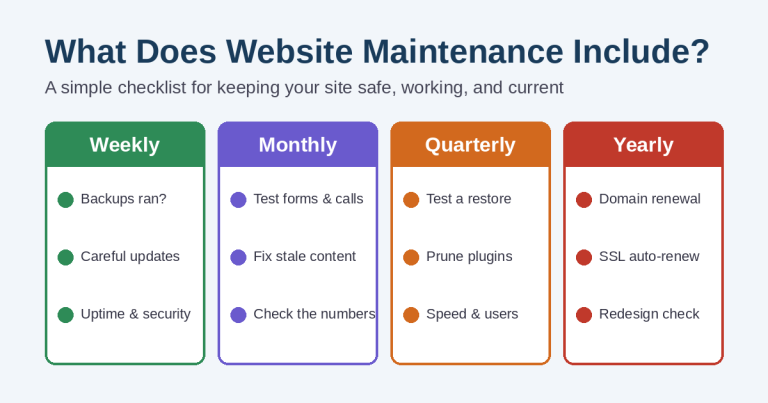
- Make renewal automatic. Confirm that your certificate renews by itself, and set a reminder to check it.
Why automatic renewal matters more now
That last step matters more every year. Under the industry’s certificate rules, new certificates issued since March 15, 2026 can last no longer than 200 days. That limit drops to 100 days in March 2027 and 47 days in March 2029. As a result, renewing by hand once a year is no longer realistic.
Mistakes that make the problem worse
- Buying a pricey certificate you don’t need. For most small-business websites, a free domain-validated certificate gives visitors the same padlock and the same encryption.
- Forgetting the redirect. Leaving both versions of the site open means old links and some visitors still land on HTTP.
- Hiding problems instead of fixing them. Some quick fixes rewrite links on the fly every time a page loads. That can cover up mixed content without removing it, and it adds one more thing that can break.
- Changing addresses without a backup. A bad search-and-replace in the database can break a site in seconds. If that’s already happened, our guide on what to do when your website crashes can help.
- Never checking again. A new plugin, embed, or image link can bring mixed content back months later.
Is the Not Secure warning a sign of a bigger problem?
Sometimes it is. A Not Secure warning caused by a missing or expired certificate often points to a site nobody is actively looking after. The same site may also be behind on WordPress updates, backups, and security protection.
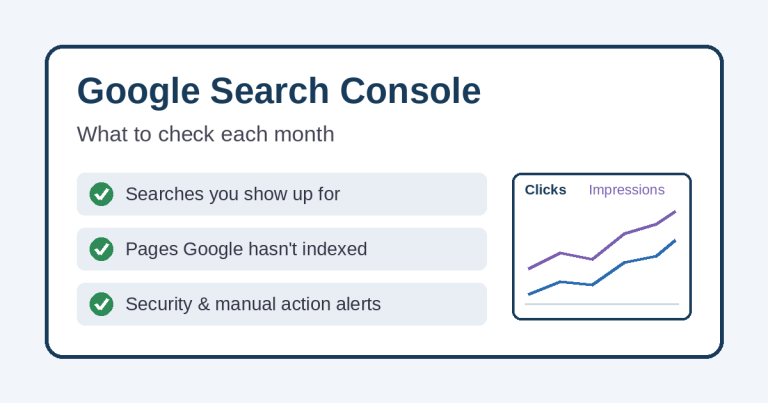
If that sounds familiar, it’s worth reading how to protect your website from hackers. It’s also a good time to learn what website hosting actually includes, so you know who is responsible for certificates and renewals. And once HTTPS is working, our plain-English guide to Google Search Console shows you how to watch for new problems.
Want the Not Secure warning gone for good?
At Simplified Internet Design, SSL certificates, HTTPS redirects, and mixed content cleanup are part of the hosting and website care we provide for businesses in St. Clair County and across Southeast Michigan. We can check your site, find what’s causing the warning, fix it, and keep renewals on autopilot.
If your site needs more than a quick fix, take a look at our website design services. Or simply contact us with your web address, and we’ll tell you what we find.